Frequently asked questions
Setting up
How do I place the Kartuu block on the product page?
This block is where your buyer enters who the voucher is for, who it is from and what it should say. Without it, every order arrives without names and a message.
Note: this does not work with Shopify's new "Canvas" editor yet. Canvas (designing with Sidekick) can't show app blocks yet. A theme you created or duplicated in Canvas therefore doesn't have the Kartuu block for now, and buyers couldn't enter any details there. Use a theme that you edit in the regular editor under Online Store → Themes → Customize. Shopify plans to add app blocks to Canvas; you won't need to change anything in Kartuu for that.
-
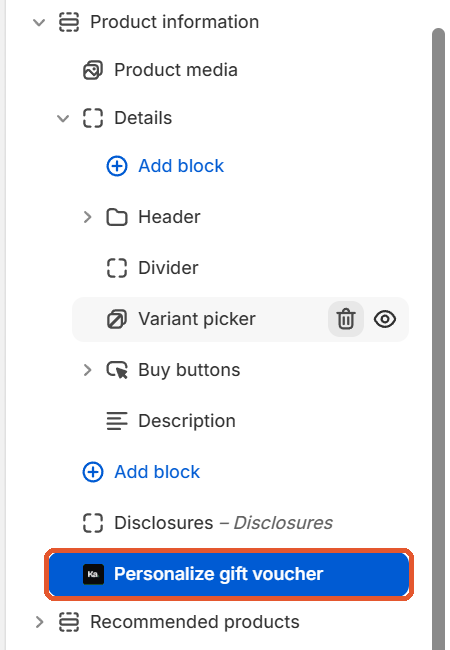
On Kartuu's home page, click Open in Shopify on the item "Place the Kartuu block on the product page". The theme editor opens your product template and adds the Personalize gift voucher block right away – but at the very bottom, below the buy buttons.
-
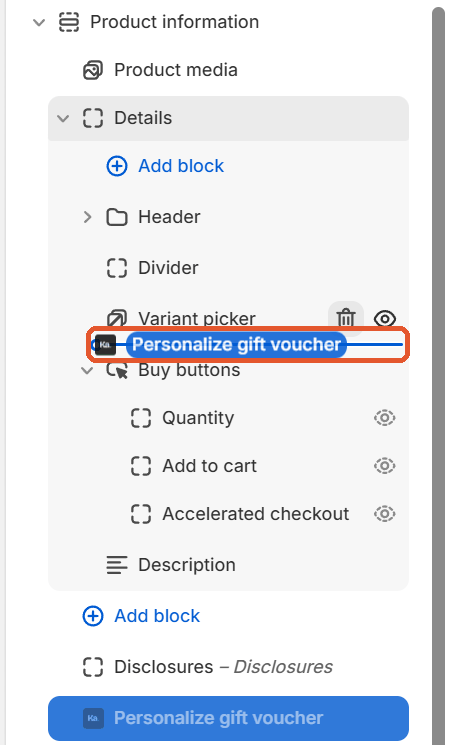
Drag the block up, above the buy buttons – ideally right below the variant picker. Below the buy button, buyers easily miss the fields and order without a name or a note.
This is how it looks afterwards – the fields sit between the variants and the buy button:
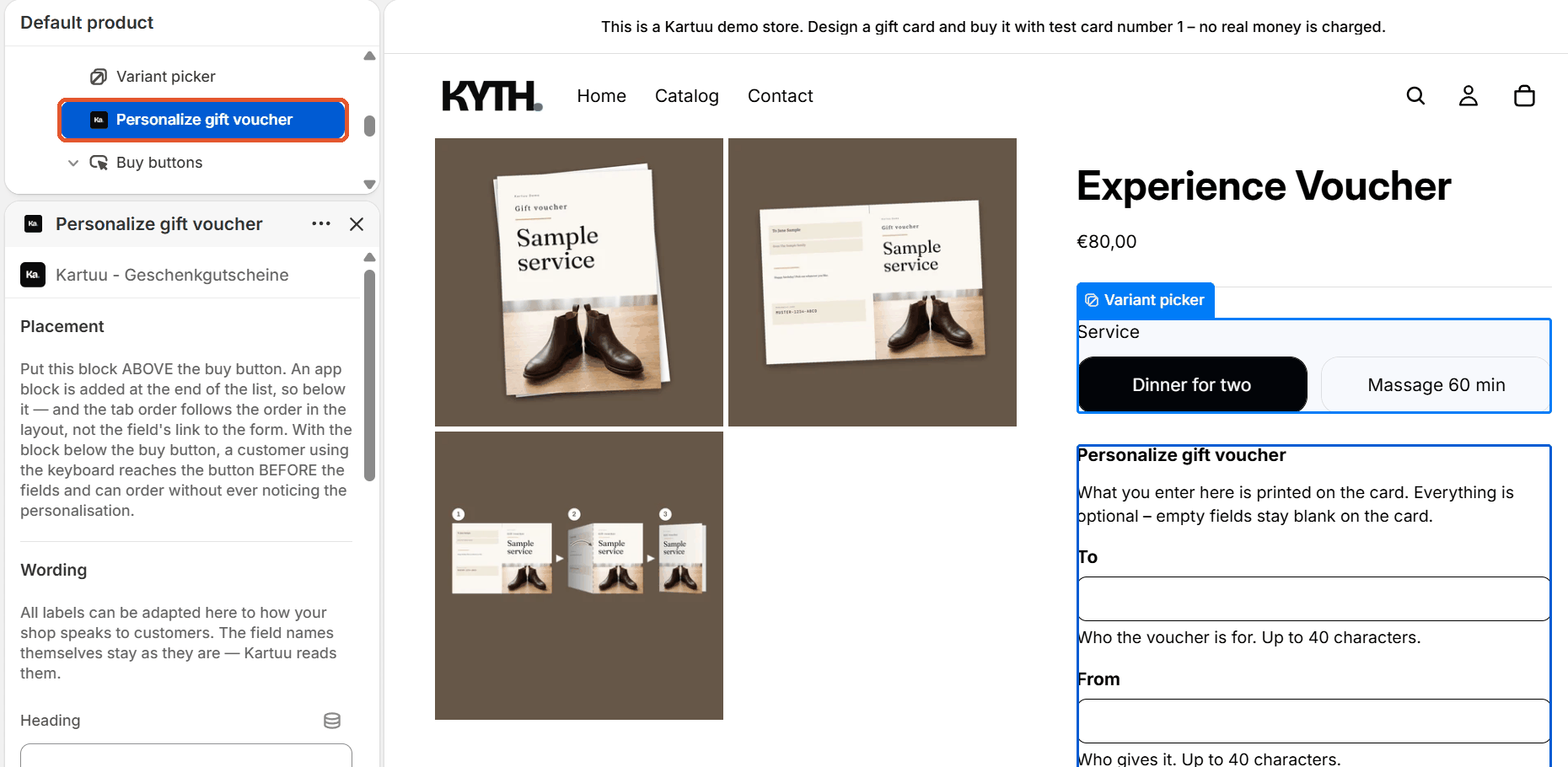
In newer themes such as Horizon, the title, price and buy buttons sit in a group of their own. Drag the block into that group. If it stays outside, your shop shows it below the product image and description instead of next to the buy button.
-
Click Save at the top right.

Then tick the item off on Kartuu's home page with Done.
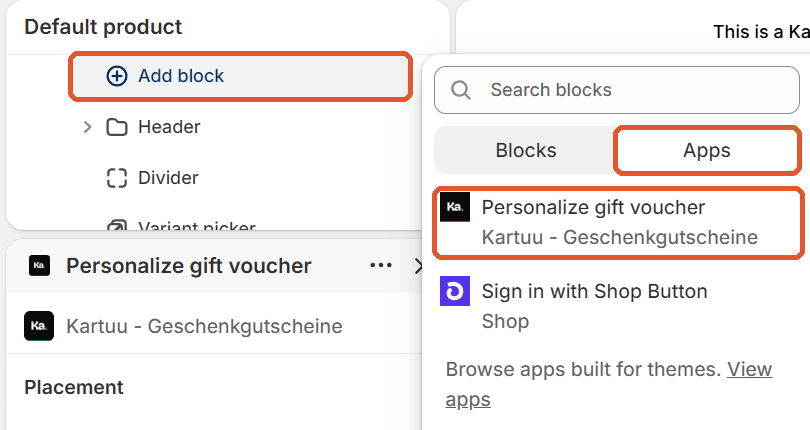
By hand it works the same way: in Shopify, open the product template under Online Store → Themes → Customize, click Add block, choose Apps at the top and pick Personalize gift voucher. Then drag it above the buy buttons as in step 2 and save.
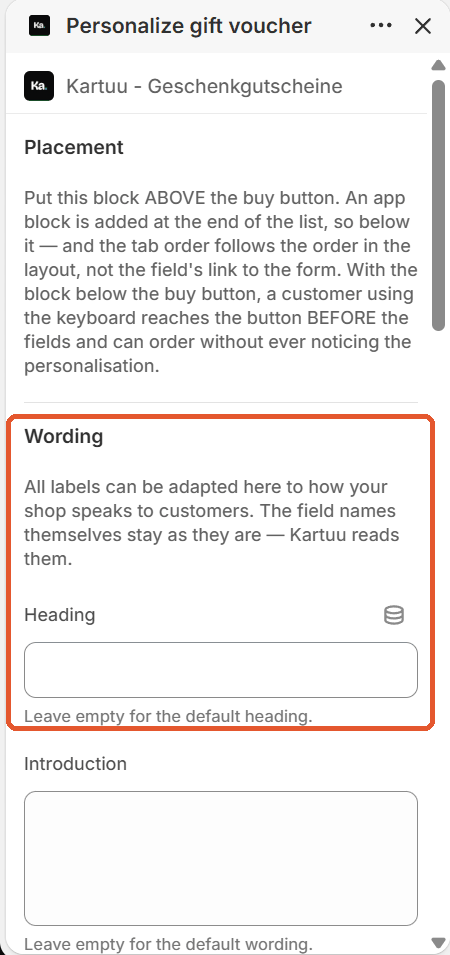
The wording in your language: When you click the block, you can set the heading, the introduction and the labels and help texts of all fields yourself under Wording – in Dutch, for example, if your store is in Dutch. If you leave a field empty, Kartuu's text appears: German in a German-language store, otherwise English. A few short sentences always come from Kartuu, in the same language: the heading above the card preview, the choice of card picture, the character counter and the error messages.
All frequently asked questions
Your question isn't here? Write to us at support@kyth.systems