Frequently asked questions
The answers are sorted by the areas of the app. Click a question to read the answer.
Kartuu at a glance
What does Kartuu do?
A customer buys a voucher in your shop and fills in, at the time of purchase, who it is for, who it is from and what it should say. Once the order is paid, Kartuu creates a real Shopify gift card and sets the text on a designed card in your colours, with your logo and one of six templates. After buying, the buyer downloads the card as a PDF through the Kartuu block on the thank-you page. If you have set up email sending, it also goes straight to the recipient.
Is the voucher a real Shopify gift card?
For an amount voucher, yes. Kartuu creates the gift card through Shopify; it is redeemed at checkout like any other, and the balance sits with Shopify, not with us.
For a service voucher, no. That one stands for a service rather than an amount — say "3 hours of massage" — and is redeemed with you, not at the checkout. There is no gift card and no balance for it; how you redeem it is explained under Orders.
Setting up
How do I make my vouchers available in my Online Store?
Kartuu creates your voucher products but does not publish them itself. Until a voucher is available in your Online Store, your customers can't see it – its product page says "Page not found".
- In Shopify, open the voucher under Products. The quickest way is from Kartuu's home page: on the item "Make your vouchers available in your Online Store", Open in Shopify takes you there.
-
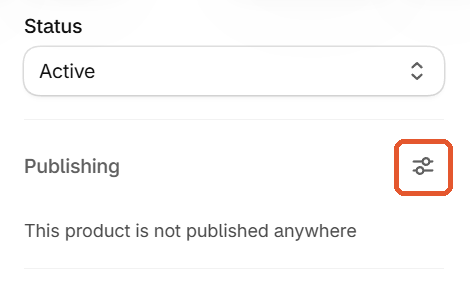
On the right, the Publishing section says "This product is not published anywhere". Click the icon with the sliders there.
-
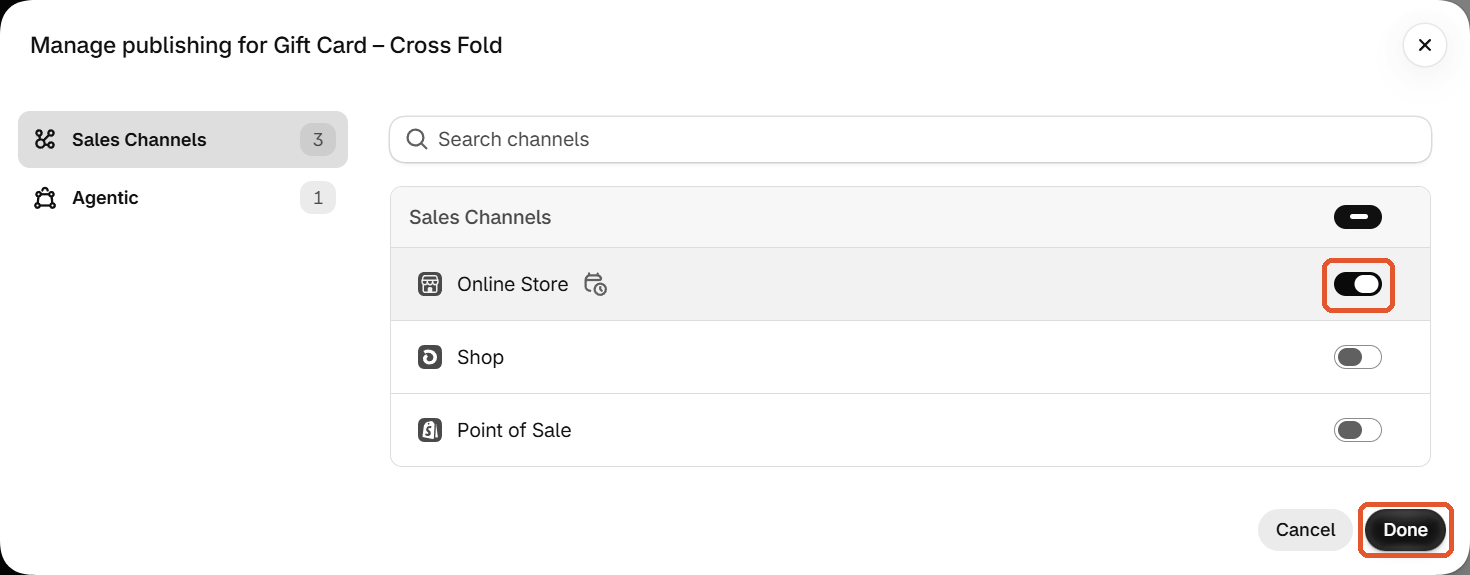
Turn on Online Store and click Done.
-
Click Save at the top – only then does it take effect.

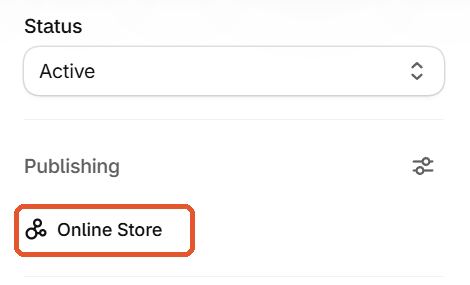
Afterwards, Publishing lists the Online Store:
If you created several vouchers, repeat this for each one. Kartuu checks by itself whether a voucher is published: under Publish it says so for each voucher (if it isn't, Make available in Shopify opens the product directly), and on the home page the item is done as soon as one is published. Only if Shopify doesn't tell at the moment do you tick it off there with Done.
How do I place the Kartuu block on the product page?
This block is where your buyer enters who the voucher is for, who it is from and what it should say. Without it, every order arrives without names and a message.
Note: this does not work with Shopify's new "Canvas" editor yet. Canvas (designing with Sidekick) can't show app blocks yet. A theme you created or duplicated in Canvas therefore doesn't have the Kartuu block for now, and buyers couldn't enter any details there. Use a theme that you edit in the regular editor under Online Store → Themes → Customize. Shopify plans to add app blocks to Canvas; you won't need to change anything in Kartuu for that.
-
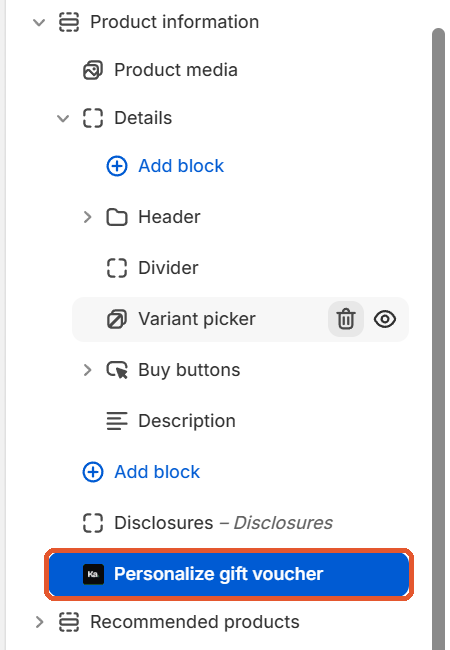
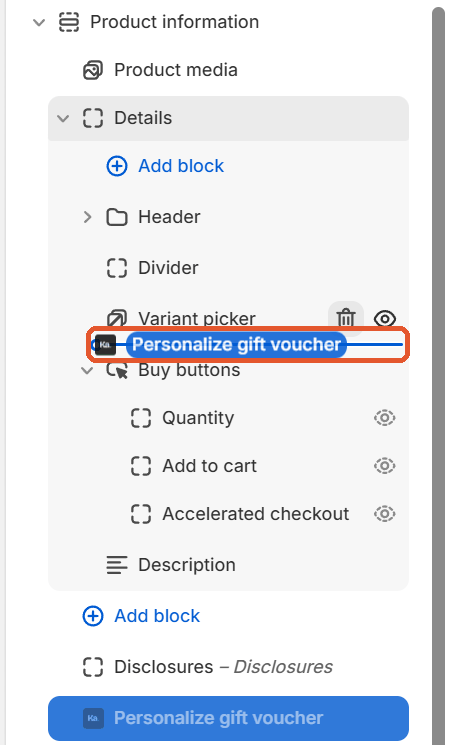
On Kartuu's home page, click Open in Shopify on the item "Place the Kartuu block on the product page". The theme editor opens your product template and adds the Personalize gift voucher block right away – but at the very bottom, below the buy buttons.
-
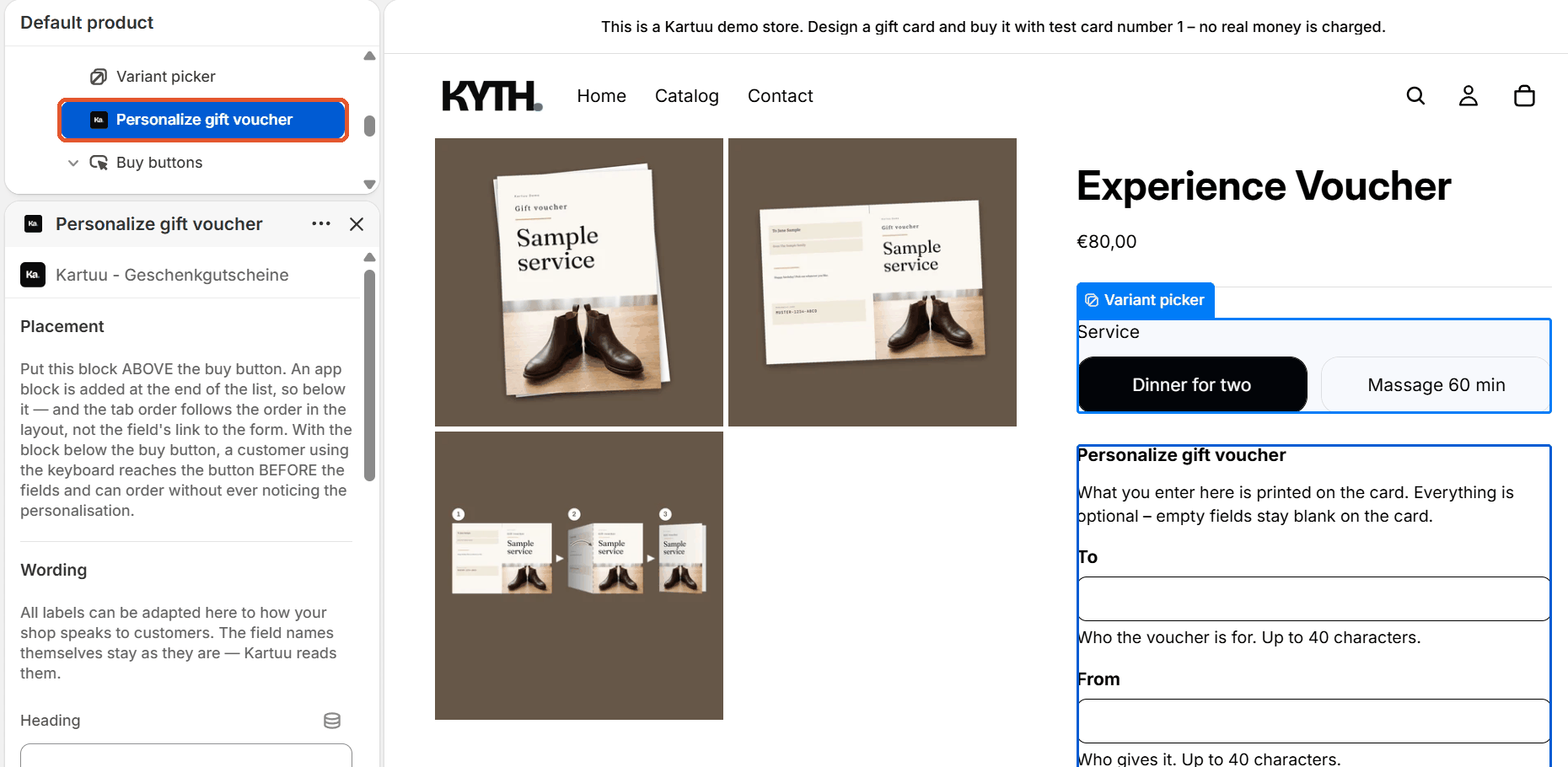
Drag the block up, above the buy buttons – ideally right below the variant picker. Below the buy button, buyers easily miss the fields and order without a name or a note.
This is how it looks afterwards – the fields sit between the variants and the buy button:
In newer themes such as Horizon, the title, price and buy buttons sit in a group of their own. Drag the block into that group. If it stays outside, your shop shows it below the product image and description instead of next to the buy button.
-
Click Save at the top right.

Then tick the item off on Kartuu's home page with Done.
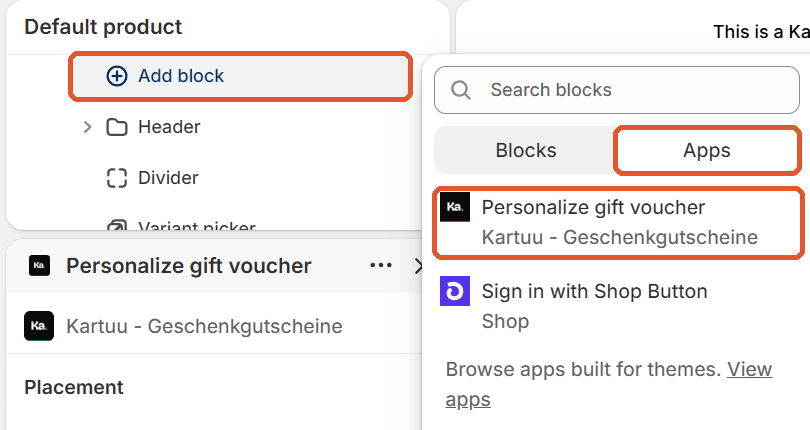
By hand it works the same way: in Shopify, open the product template under Online Store → Themes → Customize, click Add block, choose Apps at the top and pick Personalize gift voucher. Then drag it above the buy buttons as in step 2 and save.
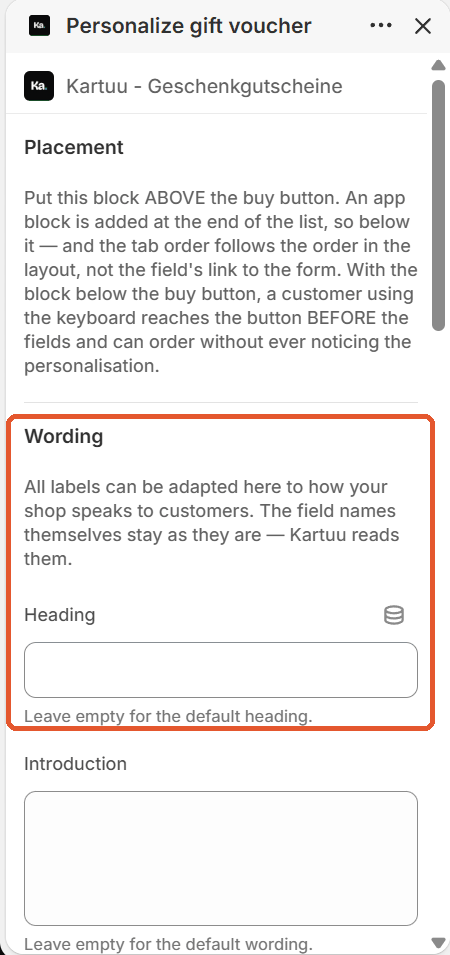
The wording in your language: When you click the block, you can set the heading, the introduction and the labels and help texts of all fields yourself under Wording – in Dutch, for example, if your store is in Dutch. If you leave a field empty, Kartuu's text appears: German in a German-language store, otherwise English. A few short sentences always come from Kartuu, in the same language: the heading above the card preview, the choice of card picture, the character counter and the error messages.
How do I place the Kartuu block on the thank-you and order status pages?
This block is where your buyer downloads their voucher after buying. It belongs on two pages: the thank-you page right after paying, and the order status page, where a buyer lands who comes back later through their order email.
-
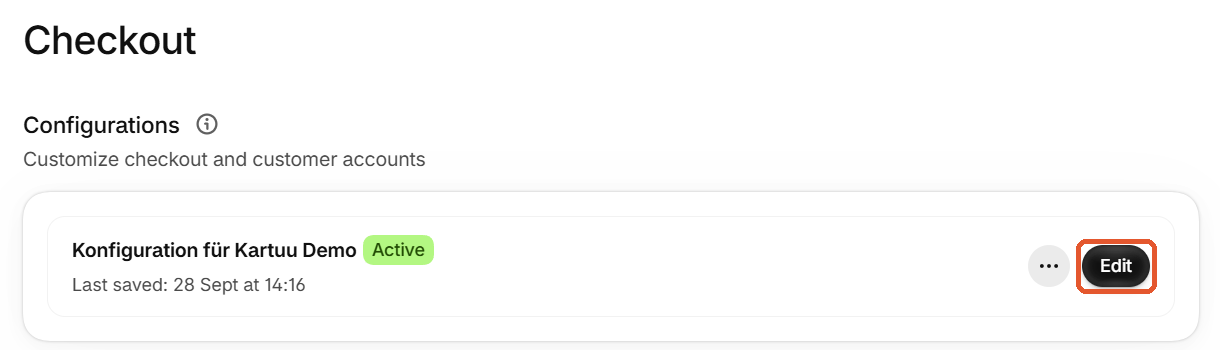
In Shopify, open Settings → Checkout and click Edit on your configuration. On Kartuu's home page, Open in Shopify on the item for the thank-you page takes you there.
-
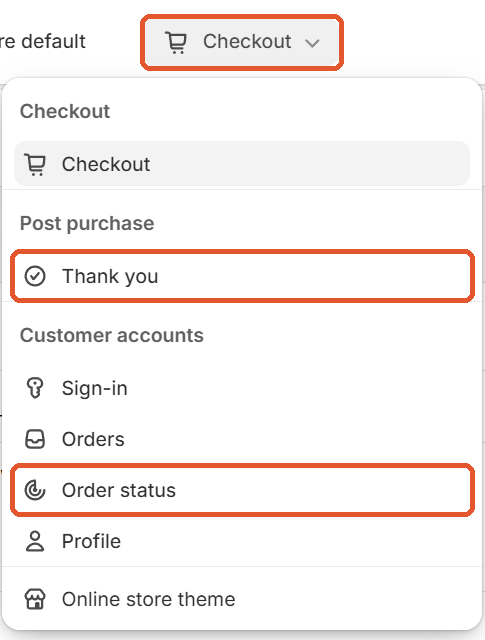
At the top centre, choose the Thank you page.
-
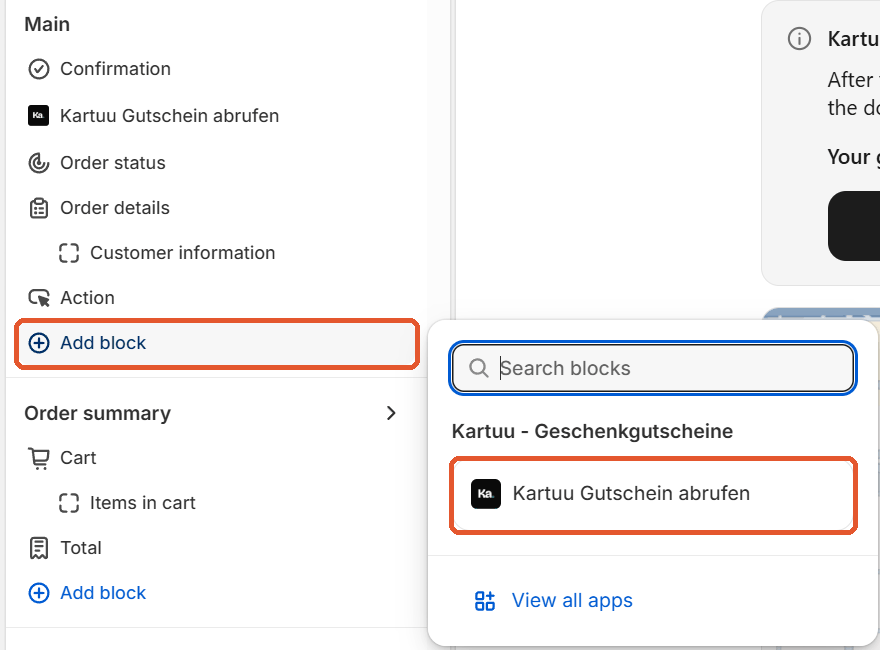
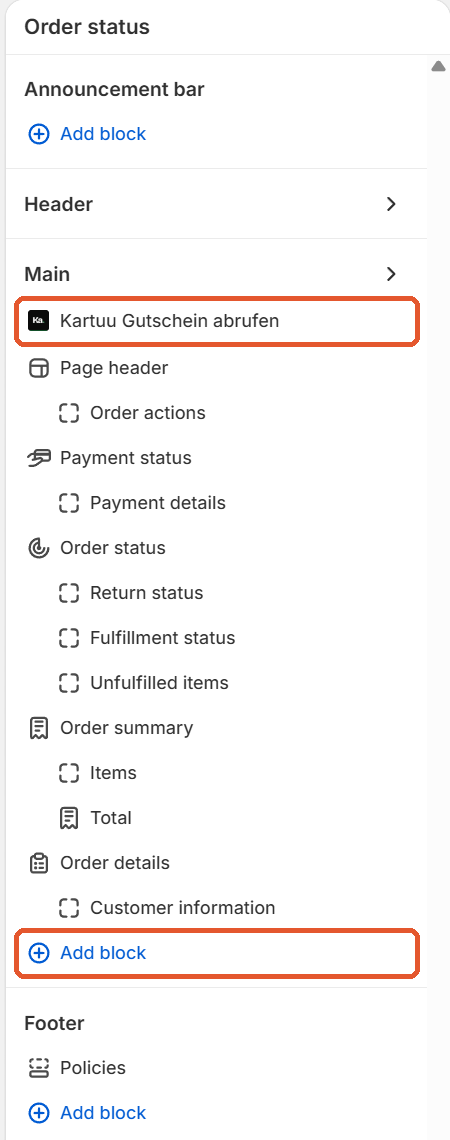
On the left, in the Main section, click Add block and pick Kartuu Gutschein abrufen. The block has this German name in every language.
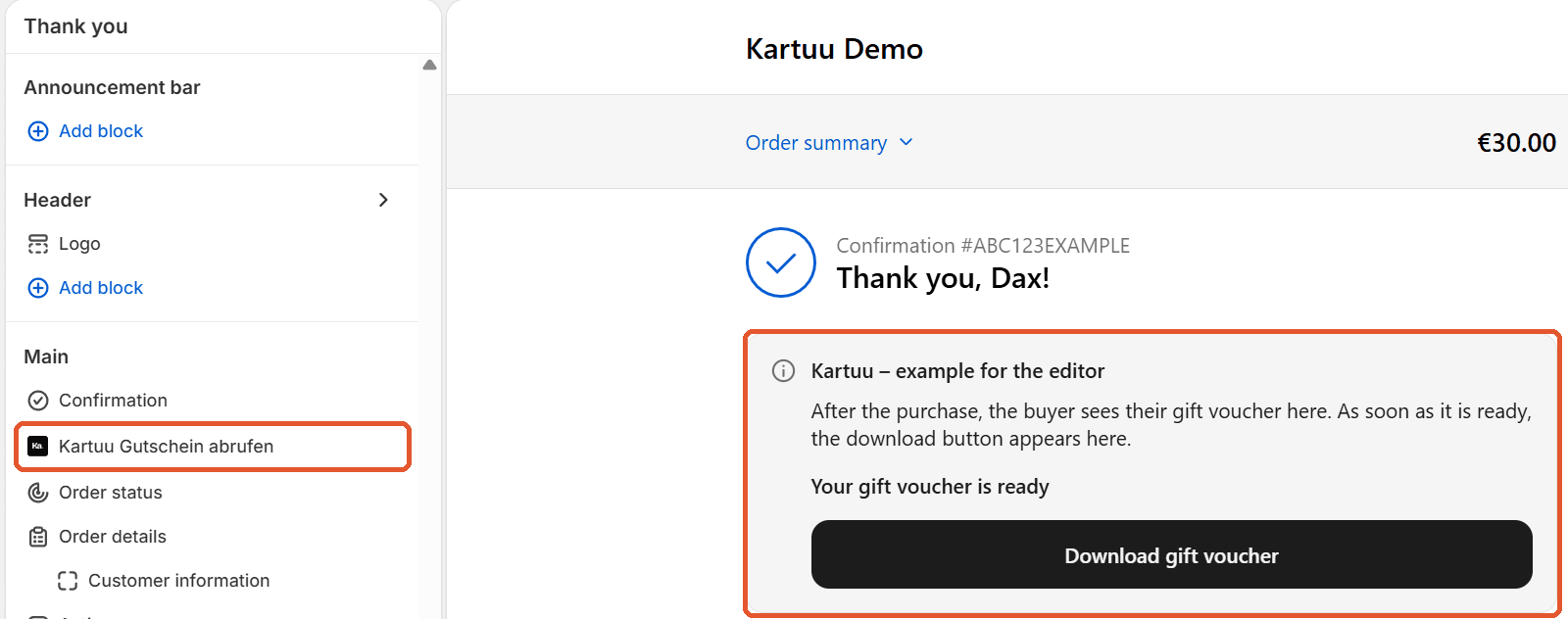
The block appears in the preview – with an example that only you see in the editor. You can drag it to another spot on the left, for example right below "Confirmation".
-
Switch to Order status at the top and add the block there the same way, in the Main section.
-
Click Save at the top right.

Then tick the item off on Kartuu's home page with Done.
The language of this block: you can't change its texts. It speaks your buyer's language: German if they shop in German, otherwise English. Unlike the block on the product page, there is no wording to override here.
How do I try out my voucher myself?
Buy it the way a customer does: in your Online Store, through checkout to the thank-you page. Two things need to be in place first:
- The voucher is active in Shopify and available in your Online Store. Otherwise nobody can buy it, you included, and no voucher appears at the end of the order. Under Publish, Kartuu shows for each voucher whether it is available. The guide How do I make my vouchers available in my Online Store? shows how.
- The Kartuu block is on the thank-you page. The guide How do I place the Kartuu block on the thank-you and order status pages? shows how.
After payment, the block briefly shows “Your gift voucher is being created”. If you check out without a customer account, it then asks for the order's email address: enter it under Your email address and press Show gift voucher. If it asks “Who is your gift voucher for?”, enter a name or press Pick up without names. Then Download gift voucher appears. If you have set up email sending, the block may show “Your gift voucher is on its way” instead; it then arrives by email.
An order you create in the Shopify admin and a purchase at the point of sale have no thank-you page, so they can't show your buyers' path.
Cancel the test order in Shopify afterwards. Kartuu then deactivates the gift card, and on Kartuu Free the fee for it lapses.
How do I put my voucher on my store's home page?
With a section of your theme that shows a single product. The voucher has to be published to the online store for this.
- In Shopify, open Online Store → Themes → Customize. The editor shows the home page.
- Click Add section on the left and choose the section for a single product. In newer themes such as Horizon it is called Product highlight, in Dawn and many others Featured product.
- In the section, click Select next to Product and pick your voucher.
- The new section is placed at the very bottom at first. Drag it in the list on the left to where it should appear and click Save at the top right.
Buyers still enter the names and the message on the product page. The section on the home page takes them there.
What does a buyer see who buys several vouchers?
When your buyer picks up their vouchers in the Kartuu block, it shows one button for each: Download gift voucher 1, Download gift voucher 2 and so on. Above them, for twelve vouchers for example, is All 12 gift vouchers as one PDF. With it, your buyer downloads all cards in one file and prints them in one go; each card in it carries its own code. With more than 25 vouchers, Kartuu splits them into several files, such as Gift vouchers 1–13 as one PDF and Gift vouchers 14–26 as one PDF.
If the block is also on the order status page, your buyer gets back there later through the link in their order confirmation.
How do I set up email sending and the delivery date?
This is optional. Without email sending, your buyer downloads the voucher themselves. With email sending, your product page also asks for the recipient's email address and a delivery date, and Kartuu sends the card through your own mailbox straight to the recipient.
-
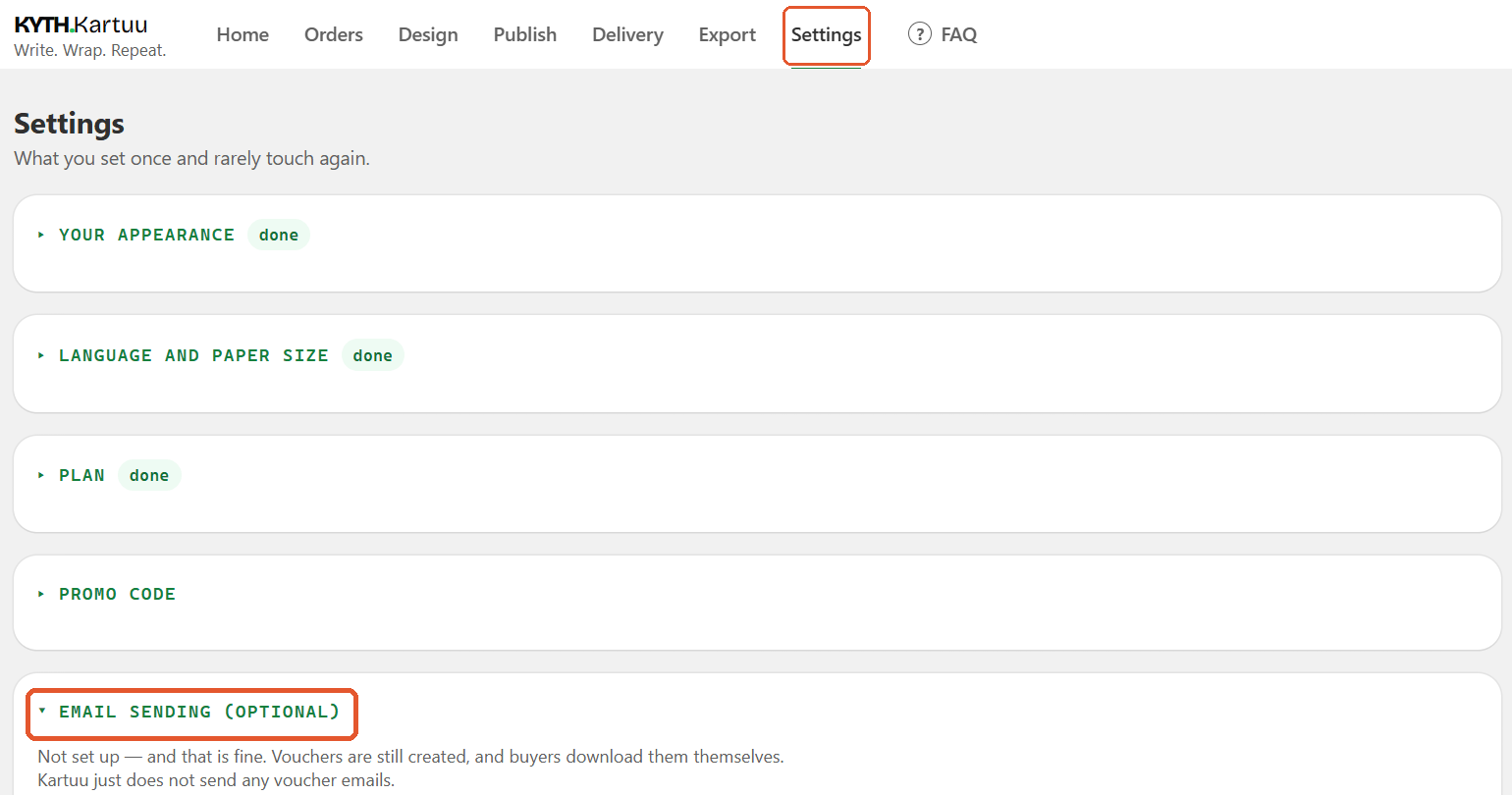
In Kartuu, open Settings and there Email sending (optional).
-
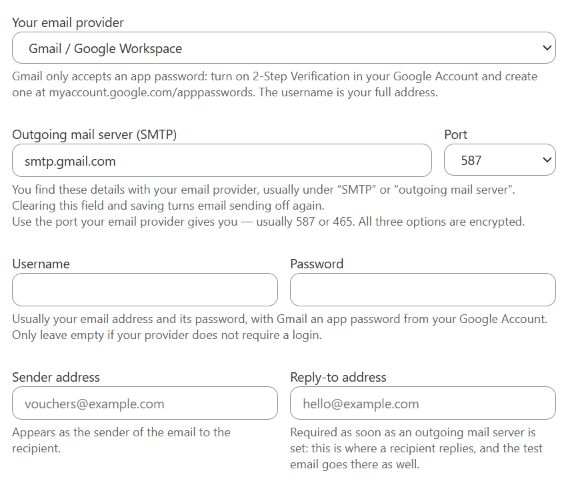
Pick your provider under Your email provider. Kartuu then fills in the outgoing mail server (SMTP) and port and tells you in one sentence what your provider needs – which ones are listed is under What do I need from my email provider?. If yours isn't listed, choose Other provider and enter the details yourself; you find them with your provider, usually under "SMTP" or "outgoing mail server". Add username and password, the sender address and the reply-to address. With Gmail, the password is an app password: you create it in your Google Account under Security, and 2-Step Verification has to be on for it. Gmail turns down your normal password. If your mailbox is at Microsoft 365, choose Microsoft 365 (business account) and click Connect with Microsoft – no password needed, see [My mailbox is at Microsoft
- How do I connect it?](?thema=start#mit-microsoft-verbinden)
-
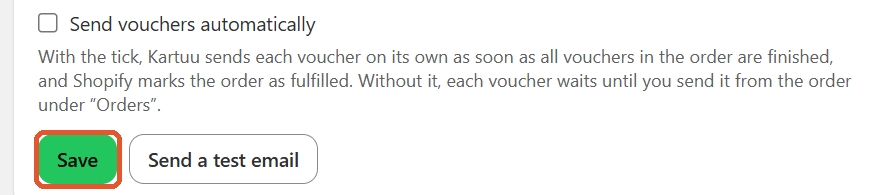
Tick Send vouchers automatically if every voucher should go out by itself: on the delivery date at 8 a.m., without a date as soon as it is ready. Without the tick, you send each order yourself under Orders. Then click Save. Kartuu signs in to your mail server with your details as it saves. If the server refuses, nothing is saved, and you see why. With Send a test email, Kartuu then sends a sample to your reply-to address – it shows that the whole way works.
-
From now on, your product page shows two more fields: the recipient's email address and the day the voucher should go out at the earliest. If you have accepted version 1.28 of the legal texts and ticked the box, the note below says “Leave empty and the voucher goes out right away.”
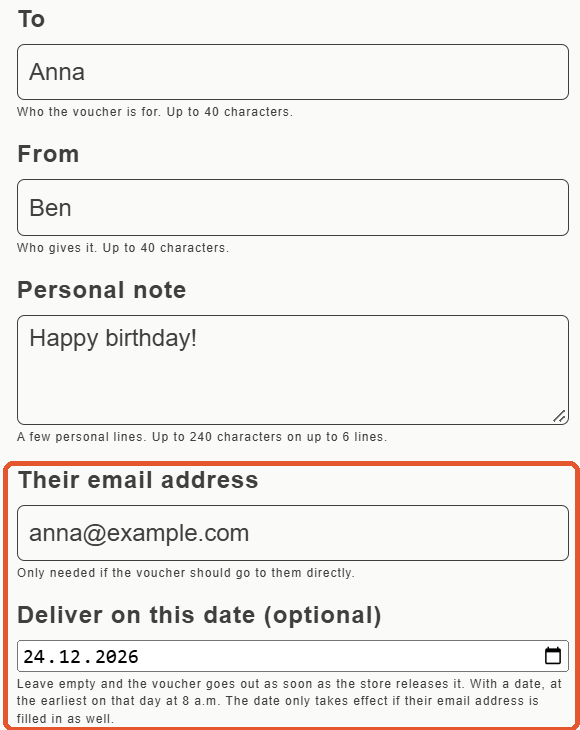
The date only takes effect if the buyer also enters the email address. More on this under Delivery in Can the buyer choose when the voucher arrives?.
What do I need from my email provider?
If you pick your provider under Settings in Email sending, Kartuu fills in the server and port for you. For all of them, the username is your full email address.
| Provider | Server | Port | What else you need |
|---|---|---|---|
| Gmail / Google Workspace | smtp.gmail.com | 587 | an app password; 2-Step Verification has to be on for it |
| Microsoft 365 (business account) | smtp.office365.com | 587 | Easiest: Connect with Microsoft, no password (next question). With a password only if your administrator turns on “Authenticated SMTP” for the mailbox and the account's security defaults are off. |
| iCloud | smtp.mail.me.com | 587 | an app-specific password from account.apple.com |
| Yahoo | smtp.mail.yahoo.com | 465 | an app password |
| IONOS | smtp.ionos.de | 465 | the password of that mailbox |
| STRATO | smtp.strato.de | 465 | the password of that mailbox |
| GMX | mail.gmx.net | 587 | “POP3- und IMAP-Zugriff erlauben” turned on; the sender is your GMX address |
| WEB.DE | smtp.web.de | 587 | the same, with your WEB.DE address |
| T-Online | securesmtp.t-online.de | 465 | the password for email programs, not your Telekom login |
If your provider isn't listed, such as Zoho or a personal Outlook.com account, choose Other provider and enter your provider's details yourself. Send a test email shows you whether everything is right.
My mailbox is at Microsoft 365. How do I connect it?
Without a password. Open Settings, choose Microsoft 365 (business account) as the provider under Email sending and click Connect with Microsoft. A new window shows the Microsoft sign-in: sign in with the mailbox the vouchers should come from and agree. Email sending then shows “Connected with Microsoft” with the mailbox address. Send a test email checks the whole way.
- Sender name: The sender shown is the name of the mailbox at Microsoft. If your shop should appear there, your administrator changes the mailbox's display name.
- Approval by your administrator: In many business accounts only the administrator may allow a new app to send emails. If Microsoft says approval is needed, your administrator agrees once for the company; after that, connecting works.
- You see the button from version 1.30 of the legal texts. If you installed Kartuu before, agree under Settings in Legal texts and consent.
- Disconnect: Under Email sending you disconnect with one click. Kartuu then immediately deletes what it stored from Microsoft.
Through the connection, Kartuu can only send emails, not read them, and doesn't put a copy in your Sent Items.
What does “Email sending disrupted” on my start page mean?
The line is shown at the top of Home while voucher emails are stuck at your mail server, for example because it rejects the login or can't be reached. It names the reason, how many vouchers are affected and, if Kartuu knows your provider, what it needs – with Gmail, for example, an app password.
Go to email sending takes you to your login details under Settings. While Kartuu is still trying, the vouchers go out by themselves once it's fixed. If Kartuu has given up after six attempts, send them again under Delivery. As soon as nothing is stuck any more, the line disappears.
If Microsoft has ended the connection to your mailbox, it says “The connection to Microsoft has ended. Please connect again.” Once you connect again, the waiting vouchers go out by themselves.
What does “Buyer waiting” on my start page mean?
The line is shown at the top of Home when a buyer from your online store doesn't have their voucher yet and probably won't get it without you. There are three reasons:
- No way to the buyer. The voucher is ready, but there is neither email sending nor a Kartuu block on the thank-you page that has worked in the last 30 days. The line appears ten minutes after the purchase. Download the voucher under Orders, hand it over yourself and close it with Mark as handed over. So that it doesn't happen again, place the block on the thank-you page or set up email sending.
- Details missing. The voucher isn't created because the details for the card are missing. The line appears once an order has been like this for half an hour, or after ten minutes if there is no way to the buyer. Add the details under Orders.
- Not picked up. Without email sending: the voucher is ready and the Kartuu block on the thank-you page works, but the buyer hasn't picked it up for over a day. They can still do so on the order status page – the link in Shopify's order confirmation leads there. If you don't want to wait, download it under Orders, hand it over yourself and close it with Mark as handed over.
Buyers are counted, not vouchers: twelve vouchers in one order are one buyer. Once everything is done, the line disappears by itself.
Do I have to create the voucher product myself?
No. Kartuu creates it under Publish with all its variants, the product image and the fields where the buyer enters the name, the greeting and the recipient's address.
The first time is the quickest: as long as your shop has no voucher and no saved design yet, Home shows the prepared card with your shop name. “Create this voucher” saves it as the design “My voucher” and creates the product “Gift voucher” from it, with three amounts that suit your shop currency – 25, 50 and 100 in euros, dollars or pounds, and for example 250, 500 and 1000 in Swedish kronor. The amounts are named above the button. You can change the design at any time afterwards under Design, and the title and amounts in Shopify. If you would rather design it yourself right away, choose “Design it myself first” – the offer disappears as soon as you have saved a design of your own. The offer also does not appear if Kartuu has no amounts for your currency or your shop already has a product of its own called “Gift voucher”; you then create the voucher under Design and Publish with your own amounts.
One step is yours: for customers to see the product, it must be published to your Online Store in Shopify. Kartuu does not publish anything by itself. The guide How do I make my vouchers available in my Online Store? shows how.
What is the Kartuu block on the product page for?
Without it, the buyer cannot say who the voucher is for and what it should say. Every order then arrives without names and a message (see “What does ‘without input’ mean?”). The block only asks for the fields your card has (see "What details do my buyers enter?").
The personal note holds up to 240 characters in up to six lines. Both limits are shown below the field before the buyer starts typing; on the sixth line the Enter key does nothing more, and a note says the last line has been reached.
How to add it – and why it belongs above the buy buttons – is shown step by step in How do I place the Kartuu block on the product page?. It also explains why this doesn't work with Shopify's new "Canvas" editor yet.
The block only appears on your voucher products, even if all products share the same template — on a jacket's page it stays hidden. If you created a voucher product by hand instead of through Kartuu, turn on "Show on all products" in the block; you then approve those orders under Orders.
Can I do without the Kartuu block on the product page?
Yes. Your product page then doesn't ask for To, From and a personal note, and every order arrives without these details. The buyer enters them right after paying in the Kartuu block on the thank-you page, or picks up the voucher there with Pick up without names (see "What details do my buyers enter?").
This works best with a design that has no fields for To, From and a personal note. Without email sending, Kartuu then doesn't ask for them anywhere, and every voucher is created right away. If your card has these fields, they stay empty when the buyer enters nothing on the thank-you page.
In that case, set up email sending under Settings. If a buyer enters nothing on the thank-you page, Kartuu then sends them the voucher without names by email after ten minutes, from version 1.28 of the legal texts. If something does need your attention, you get a note at most once a day. Without email sending, such an order stays with you under Orders, and Kartuu cannot let you know. How to set it up is shown in How do I set up email sending and the delivery date?.
If none of your cards asks for anything, the home page doesn't show the step "Place the Kartuu block on the product page" at all. Otherwise, tick it off there with Done.
What details do my buyers enter?
The Kartuu block on the product page only asks for what is on your card. If your design has no field for the personal note, it does not ask for one. If it has no fields for names or a personal note at all, it asks for none of them – and every voucher is created straight away, even after a purchase with Shop Pay or PayPal Express.
If names and a message are missing because the buyer skipped the block – for example with an express purchase –, from version 1.28 of the legal texts the voucher no longer waits for you if it reaches the buyer another way. If Kartuu has seen the Kartuu block on your thank-you page with an order in the last 30 days, the buyer enters To, From and the message there right after paying. If they press Pick up without names instead, the voucher is created straight away without names and they pick it up there. If your card has no field for names or a message at all, it is created straight away. This applies to orders from your online store; at the point of sale and for draft orders there is no thank-you page.
If you have set up email sending, a voucher without a recipient address goes to the buyer by email from version 1.28: if they enter nothing on the thank-you page for ten minutes, the voucher is created without names and emailed to them; without a thank-you page, straight away. Without email sending, an order where the buyer does nothing stays with you under "without input" – the thank-you page tells them you will take care of it. In these cases To and From stay blank on the card. If you accepted an earlier version, the voucher waits for your input as before.
If you have set up email delivery, the block always asks for "To" and "From" as well: both appear in the email to the recipient. If they are not on your card, the block says so below the field. The email address and the preferred date are asked for as before.
Which fields a voucher has is shown under Publish in Your vouchers. The forms for adding details later show the same fields – for you under Orders, for the buyer on the thank-you page.
What is the Kartuu block on the thank-you page for?
Through this block the buyer downloads their voucher after the purchase. Without email sending it is how the voucher reaches the buyer — if it is missing, you have to download every voucher under Orders and hand it over yourself.
If your voucher can be bought in your shop and there is neither this block nor email sending, the home page marks the step in red with “Important”. If you have already placed the block, click Done there: Kartuu only sees it once it has been shown after a purchase.
Right after the purchase the block shows “Your gift voucher is being created” and updates by itself as soon as the voucher is ready.
If a voucher isn't ready yet – because you still have to check it under Orders or it got stuck while being created – the block says the voucher is still being finished, without asking for the email address: there is nothing to download yet.
Buyers who checked out without a customer account enter their email address in the block to see the voucher. If it does not match the order, the block says so. After five failed attempts within ten minutes it asks them to try again in about ten minutes – even the right address only works again after that pause. If Kartuu is briefly unreachable, it asks them to try again in a moment.
How to place it on the thank-you and order status pages is shown step by step in How do I place the Kartuu block on the thank-you and order status pages?.
Why do I have to tick off some items on the home page myself?
Some steps happen in Shopify. Kartuu checks publishing to the Online Store by itself. Whether the two Kartuu blocks are in place it only sees once they have worked; until then, tick them off with “Done” once you have placed them.
The product page block counts as done as soon as it has been shown in your store for the first time – a preview in the theme editor doesn't count, because the block is there before you save it. The thank-you page block counts as done once it has been shown after a purchase. If Kartuu can't check publishing with Shopify at the moment, it counts as done after the first purchase in your Online Store.
The home page shows the next step large, with “Done” next to the button that takes you to Shopify. The other steps are collapsed: click a title to open it, and complete and tick them off in any order you like. What is already done is listed below in the line “Already done”; there you can undo a tick with “Reopen”.
Once no required step is open any more, the steps disappear from the home page, and the optional email sending is shown as a single line below “Design”. Ticks and proofs are still listed under Settings in the “Setup” section – including since when the Kartuu blocks have demonstrably worked.
Does Kartuu send me emails?
Rarely, and never marketing. To the address you gave when you accepted the terms, we send:
- the setup email, once – the morning after you install, and only if you have chosen a plan and steps are still missing before your first voucher sale. If you choose the plan later, it comes the morning after you choose it. If you accepted a version of the legal texts before 1.28, this only applies within the first seven days after you install; after that, none is sent. It lists exactly those steps and how to do them, in the language you see Kartuu in. There is no reminder afterwards.
- personal messages when the setup gets stuck or something isn't working in your shop – for example when vouchers can't be delivered. One of us writes them, without marketing. This applies from version 1.29 of the legal texts.
- a notice if Microsoft ends the connection with your mailbox – once, with the number of vouchers waiting to be sent. This applies from version 1.30 of the legal texts.
- privacy notices, for example when the data processing agreement changes – at least 30 days before the new version applies. If you accept it beforehand under Settings, it applies right away and you can use what it newly covers.
- at most one notice a day when orders need your attention – but only if you have set up email sending under Settings; it goes out through your own mailbox.
The setup email comes from hello@kyth.systems. It greets you with the first name Shopify has on file for your shop; we don't store it. If you reply to the email, your answer comes straight to us.
To change your address, write to datenschutz@kyth.systems. Kartuu never sends vouchers to your customers through our mailbox, only through your own email sending.
Design & publish
Can I create several vouchers?
Yes, as many as you like. Under Design you save designs. Under Publish – or with the "Go to publishing" button at the top right of the editor – you create vouchers from them — each with its own title and amounts — or give an existing voucher a different design. Once you have vouchers, Create another voucher opens the form for the next one. There you pick the design first; then type, title, amounts and product images appear.
Every voucher needs its own title, across both kinds: if a value voucher already exists under a title, you cannot create a service voucher under it (and vice versa). Kartuu then tells you which one is already there – choose a different title.
How do I open and change a saved design?
When you open Design, the design you saved last opens. Above the two tabs Adjust template and Design freely, the selection of your designs sits under "Design". Pick one — it opens where you created it. If you save it under the same name, it is overwritten. "New" starts a new design.
If the template has changed since you saved the design, it opens under Design freely — exactly as your voucher is sold. Under Adjust template you see it in the new version, with your colours, your picture and your logo. If you save it there, all vouchers with this design get the new version. A card you moved around freely cannot be rebuilt from the template; under Adjust template you then start a new design.
If the design is published, the voucher in your shop shows the new version right after saving.
Are there ready-made cards for Christmas, Carnival, Easter and other occasions?
Yes, all year round. Design shows the "Ready-made cards" button – under Adjust template below the templates, under Design freely below the tools. It opens one section each for Christmas, Carnival, Easter and "For every occasion". The set for the current season is at the top and expanded; expand the others whenever you need them – so you can set up your vouchers before the season starts. The seasons: Christmas from 1 November to 26 December, Carnival from 27 December to Shrove Tuesday, Easter from Ash Wednesday to Easter Monday, "For every occasion" from the Tuesday after Easter to 31 October.
For Christmas there are eighteen cards: twelve labelled by trade, such as Coffee, Fashion, Hotel or Restaurant, plus three photo cards "For every shop" and three graphics. For Carnival and for Easter there are 39 each: a classic, a modern and a bold card for eleven trades, plus three cards each "For every shop" and "Graphic". "For every occasion" has 39 cards too, sorted by occasion: six each for Birthday, Mother's Day, Father's Day, Wedding, Thank you and Summer, with the matching greeting on the card, plus three graphics "For you". Each card comes folded once and folded twice; the preview shows the fold you picked.
One click opens the card under Design freely as a new design, with your name on the card. If you've added a logo under Settings, it appears on the back – on dark cards on a small white label. You change the texts right on the card and swap the image for your own photo with "Choose another image". Once saved, it is a design like any other and stays yours after the season, too.
The photos in these sets are AI-generated, so those cards carry a small line "Image: AI-generated". The line disappears by itself as soon as no such image is left on the card. The graphics were made without AI and don't carry the line. Other merchants can use the same images.
Why can't I delete a design?
Because a voucher is using it. Give that voucher a different design first (see the next question) — then the design can be deleted.
If you deleted the voucher in Shopify, it no longer holds on to the design: when you delete, Kartuu checks whether the voucher still exists and deletes the design if it doesn't. Vouchers that were already issued keep their design.
How do I give a voucher a different design?
Open Publish and expand Your vouchers: every voucher is listed with its product image. Click "Change design" on the voucher, pick a saved design and then "Publish". You change the title and amounts directly in Shopify.
Which product images does Kartuu add?
You choose that for each voucher, when you create it and later under "Change design". Under Product images in your store you'll find the views, each with a small image of your own design:
- Card: the folded card standing up, with its back beside it – on a background in its colours. For a cross fold, the same card stands open behind it, showing its inside.
- Closed card (cross fold only): the folded card on its own, standing up, without the open one behind it.
- Front: just the front page, on the same background.
- Folding guide: step by step, how the printout becomes the card, with a heading and a line.
- Choose from … designs: the card in every design the buyer can choose from. This view only appears once you offer at least two pictures to choose from (see "Can the buyer pick the picture on the card?").
- Open sheet: every side unfolded, on the same background.
- Whole sheet: every side at a glance, without a background.
Tick what should go on the product and drag the views by their handle into the order they should appear in your store. With the keyboard, move the handle with the arrow keys. With nothing ticked, Kartuu adds no images – for your own product photos.
Kartuu never touches photos you upload yourself. New images from Kartuu go after them.
Vouchers you already had keep their images until you change something there. With Refresh images in your store under "Change design", you bring the current version of the views to a voucher, even without changing anything.
In the amount field, the images show a sample amount such as 50.00. If that doesn't fit your vouchers, enter your own text under Amount on the product images, for example "from $30" or "Any amount" – when you create the voucher or later under "Change design". It applies to all vouchers with the same design. The voucher a buyer receives always shows the amount they bought.
Kartuu takes the background of the images automatically from your card's colours so that the card stands out. Under Background of the product images, you can pick your own colour instead – also when you create the voucher or under "Change design". The whole sheet always appears without a background.
How long does the product image take?
Usually about half a minute, and the page shows it as soon as it's ready. After a new design it is renewed automatically.
Can the buyer pick the picture on the card?
Yes, if you offer it. For a value voucher you set up to four pictures — one for Christmas, one for birthdays, a neutral one — right when you create it under "Let the buyer pick the picture", or later under Change design. They appear as small tiles on your product page; the buyer clicks one, the preview changes right away, and their card carries it.
Everything else stays your design: colours, template, logo and every other picture on the card. Only the one place you set aside for it is swapped.
Set nothing here and nothing changes — your product page looks as it did.
From two pictures to choose from, Product images in your store also offers the view "Choose from … designs": the card in each of these designs side by side. It only goes on the product if you tick it. If you take the pictures out again, Kartuu rebuilds the product images without this view.
Can each service have its own picture?
Yes, with a service voucher. When you create it, each service row has a “Choose picture” button next to the name and price. Later you find the assignment for this voucher under Change design → “Picture per service”, with one row for each service the voucher currently has in Shopify.
When the buyer chooses a service in your shop, the preview shows its picture and their card carries it. They don't pick a picture: the picture belongs to the service, so this voucher shows no picture tiles. A service without its own picture gets the picture of your design. The same single place is swapped as with the picture choice.
If you rename a service in Shopify, it keeps its picture. A new service you add there has none at first; you assign one under Change design.
If you give the voucher a design without a picture area, the pictures do not go on the card. Under Your vouchers, this voucher then shows a note with Remove assignment – likewise if a service no longer exists in Shopify.
For this, Kartuu stores which picture belongs to which service. The legal texts describe this from version 1.28. If you accepted an earlier version, this place shows the link “Review and accept the legal texts”.
Why don't I see "Let the buyer pick the picture" on my voucher?
With a service voucher, from version 1.28 of the legal texts the service picks the picture (see "Can each service have its own picture?"). There the section only remains while a selection from before exists – so you can remove it.
Then your design has no place for a swappable picture. The templates that come with Kartuu have one: their large picture. It stays when you keep working on the template under Design freely – even if you put in another picture there with “Choose another image”, or uploaded your own picture on the Adjust template tab first. If you deleted that picture, the place is gone: bring it back with Ctrl+Z while the design is still open.
You can also assign the place yourself: under Design freely, select a picture and tick “The buyer may replace this picture”. At most one picture per card carries it – tick it on a second one and the first loses it. Your shop's logo does not offer it. Save the design afterwards. Without that place Kartuu could not honour the choice — the buyer would click a picture and never see it.
If you had already offered pictures before, they stay saved on the voucher, but the tiles no longer appear in your shop: the buyer cannot pick a picture, and their card carries the picture of your design. Under Publish the voucher says so, together with the button “Remove selection”. If you give the voucher a design with a large picture again instead, the tiles are back.
Where do I upload the pictures for the selection?
Right in the picker: when you create a voucher or under Change design → "Add a picture" you'll find "Upload a picture" next to "Cancel". It is the same storage the editor uses — whatever you uploaded there, you'll find here.
How many pictures may I store in total?
Twenty per shop. Everything in your storage counts: logos, the pictures in your designs and the ones you offer for choice. When the limit is reached, Kartuu says so on upload and you delete one first.
A picture that is only still part of an issued voucher is not counted – that is, one that is neither your logo nor in a saved design nor offered for choice on a voucher. Kartuu keeps it so that the card of that voucher stays correct; it therefore cannot be deleted, but it takes none of your twenty slots either. In the image selection under Design freely it carries a lock instead of a bin, and you can keep using it.
The image selection always shows every picture that takes one of your slots. Of the pictures with a lock it shows the twenty newest; older ones are kept for their vouchers. If you need one of them again, upload the file once more.
What happens to my picture when I upload it?
Kartuu scales it down to what a printed card needs: 2000 pixels on the long edge at most. On a card page that is roughly 242 dpi — more than any home printer resolves, and every pixel beyond it would only slow the preview down. If your picture is already smaller, it is left untouched.
Kartuu always removes the photo metadata — device, time taken and, above all, the location a phone writes into a photo. The picture itself does not change, not a single pixel; only the rotation of a photo taken upright is kept so it does not end up on its side. Pictures you uploaded earlier have been cleaned as well.
A large photo you saved as a PNG is converted to JPEG. PNG is the wrong format for photos and easily costs seven times the space, without anyone seeing a difference on the card.
Pictures with transparent areas always stay PNG — a cut-out logo would otherwise end up with a white box around it, and you would only notice on the printed card.
You can upload JPEG, PNG, WebP and SVG, up to 5 MB per file.
How do I delete a picture?
In the picker under Publish, every tile has "Delete picture" beneath it. Under Design freely, every tile of the image selection (“+ Image” or “Choose another image”) carries a bin in its corner: the first click asks, the second deletes. An accidental double-click does not delete, and after a few seconds the question is forgotten again. The top shows how many of your slots are taken. Kartuu deletes a picture only when nothing depends on it any more, and otherwise tells you where it still sits:
- as your logo,
- in a design,
- offered for choice on a voucher,
- or in a voucher that has already been issued.
A picture that is on the card you are designing right now has to be removed there first. If you only just took it off the card, “Undo” still holds on to it: save the design and open it again, then it can be deleted. Your image from the Adjust template tab is removed there.
The last one cannot be resolved, and that is deliberate: an issued card must still look a year from now the way it looked when it was bought.
How do I save my brand colors?
Every color picker shows the hex code next to the swatch – you can type it
directly, e.g. #1A2B3C. “+ Brand color” saves the current color for your
store; it then sits at every color picker as a circle you can click, in every
template and in free design. The small cross on the circle removes it. Up to
twelve brand colors are possible.
Can Kartuu take the colors from my logo?
Yes. On the Adjust template tab, below the colors, there is the button “Match colours to logo”. Kartuu reads the colors from the logo you have on file and puts them into the chosen template: the most striking color as the accent or the fill, the darkest one as the text color or the band. Paper and background stay as they are. A color that would hardly show on the paper is darkened a little.
After that it is a color choice like any other: each color can still be changed on its own, and “Reset colours” takes everything back. Kartuu works this out itself – only when you click, and without any further service.
If no logo is on file, the button tells you so; you upload it under Settings. With a black-and-white logo, Kartuu takes the text color at most. The Design freely tab does not have the button.
I deleted the amount or the gift card code – how do I get it back?
Just deleted it? Then Ctrl+Z brings it back. Otherwise, Design freely has “Insert variable”: amount or service, gift card code, recipient, sender, message and shop name. Variables already on the card are marked in the list. A card without the gift card code cannot be saved – without it, nobody could redeem the voucher. If the amount is missing, Kartuu points it out when you save.
When you click a variable, you see its explanation instead of a text field, e.g.
{{ wert }} = Amount / service, filled in by Kartuu at purchase. The preview
shows a sample value; Kartuu fills in the real one at purchase. Don't type an
amount there by hand – it would then be on every card.
How does each card show the amount that was bought?
Through the Amount / service field: the preview shows a sample value, and at purchase Kartuu fills in the amount of the variant that was bought – with 25, 50 and 100, every card shows the right one. One design is therefore enough for all amounts of a voucher.
Don't put the amount into a picture or a text. Kartuu prints every card of a voucher with the same design, so an amount in the picture would be on every card, whichever was bought. A separate design per amount doesn't help, because a voucher has exactly one. If you want a different motif for each amount, create a separate voucher with its own design for each amount.
To show the amount on the front, select the Amount / service field under Design freely, choose Cover under “Panel” (Front for a card folded once) and drag it into place. With a cross fold, the top half is shown upside down while you do this – that's how it prints, and it reads the right way up after folding.
What does “Check the price” mean on my voucher?
For every value voucher, Kartuu checks that each option costs what it says. If Your vouchers shows “Check the price” for a voucher, one option costs something else – such as “75” for $25.00. This easily happens when you add a variant in Shopify and keep the price of another one.
The voucher is always for the amount paid: anyone who buys that option pays the wrong price and gets a card for exactly that amount. Change the price in Shopify opens the product; enter the right price for the variant and save. The next time you open the page, the note is gone.
How do I move, rotate and resize an element?
Under Design freely, click it in the preview. Dragging moves it, the dot at the bottom right resizes it, and the dot above the element rotates it – hold Shift for 15° steps. The dot and the cross only appear on the selected element. Clicking an empty spot or pressing Esc deselects it; Delete removes the selected element. Hold Ctrl or Shift to select several.
For finer control use the arrow keys: they move the selected element by 1 mm, with Alt by 0.2 mm; with Shift they change its size. You can also type the angle under “Rotation”. Without a mouse, tab to the element and select it with Enter.
How do I crop a picture?
Under Design freely, select the picture and click Crop / move – or double-click the picture. You then see the whole picture faded and the part that goes on the card bright inside the frame. Dragging inside the frame moves the picture within it; the dots on the edge trim a side or bring it back, up to the edge of the picture. The picture stays where it is on the card. Enter, Esc, a click outside or Done finishes cropping.
While you crop, the left side shows only the tools for it: Done, the “Zoom” slider, “Reset crop” and Outline. “Oval or circle” or “Round corners” makes the picture round; the bright part shows the shape straight away, and whatever lies outside stays faded.
To zoom in further while cropping, use the mouse wheel or the “Zoom” slider, up to four times. “Reset crop” undoes the crop. A picture set to “Show whole” and a logo can't be cropped – they always show in full in their place.
How do I make round shapes, a star or a border?
Under Design freely, More shapes adds an oval, a triangle, a star, a heart, a speech bubble, an arrow or a burst. Each works like the one from “+ Shape”: you drag it to any size, rotate it and choose its colour. An oval that is as wide as it is tall is a circle. To put text on a shape – in the speech bubble, say – add it with “+ Text” on top.
With an element selected, Outline switches its form, and Round corners gives a rectangle rounded corners. Border (mm) and Border colour give a shape or a picture a border. It sits inside, so the element stays the size you dragged it to. No fill, border only turns a shape into a ring or an outline.
A picture can be cut round the same way: select it and set Outline to Oval or circle, or drag Round corners up. Stars, hearts and the other forms are only available as shapes, not as a picture crop. Text has no outline and no border – put it on a shape instead.
My logo or mark is cut off at the edge – what can I do?
A picture fills its box completely; whatever sticks out is dropped. That is right for a photo, but not for a logo. Select the picture under Design freely and switch “Image in its box” from “Fill” to “Show whole”: it then sits completely inside the box, however you drag it. Your shop's logo (via “+ Logo”) is always shown in full.
Can I undo a step?
Yes. Under Design freely, Ctrl+Z (⌘+Z on a Mac) undoes the last step and Ctrl+Shift+Z redoes it – or use the two arrows above the tools. After deleting, duplicating or aligning, “Undo” also appears below the preview. Kartuu remembers the last 50 steps while the design is open. In a text field, Ctrl+Z undoes your typing as usual. Once you have left the text field, everything you typed in it counts as one step – on the left under “Text” just as when typing directly on the card.
Can I lose my design by accident?
Not without being asked. As soon as something under Design freely is unsaved, Shopify shows the “Unsaved changes” bar at the top with Save and Discard. While it is showing, clicking Shopify's sidebar, the app's menu or “Go to publishing” does not leave the page – save or discard first. “Discard” asks once more. When you reload or close the tab, your browser warns you. The Adjust template tab doesn't show the bar: template and colours are quickly set again there.
How do I change the colour of the paper?
Under Design freely, the “General” card sits below the editor. It shows every colour on your card, grouped into fills and typeface – the paper's usually under “Fill” – and changes it wherever it is used. The paper itself can't be clicked: that way, clicking an empty spot deselects instead of moving the paper.
Can I change a text directly on the card?
Yes. Under Design freely, double-clicking a text opens a field right in its place, in its font and size – you type, and the card follows. If the text is very small on screen, the field shows it larger for typing and reaches beyond the text; on the card it stays as it is. Esc or a click elsewhere ends typing. This works for fixed text such as “Gift card” or “Redemption code”. If the text contains a variable – the amount, the name, the greeting – Kartuu fills it in on every card itself; you change such texts on the left under “Text”.
A small bar also floats at the selected element with the essentials: font, size, colour, bold, italic, duplicate and delete. Font, size, colour, bold and italic can be changed there while you are typing, too: the change applies at once and you simply keep typing. Everything else stays on the left as before.
How do I centre a text in its box?
With the buttons next to “Bold” and “Italic”: the first three set the text left, centre or right, the three beside them top, middle or bottom. They align the text within its box. “Align on the page” below moves the whole box instead – a single element to the edge of its side of the card, keeping the same margin as the templates, several to each other.
Can I change the font of the whole card at once?
Yes. Under Design freely, the “General” card has the field “Typeface for all texts”. Pick a font there and every text on the card gets it. If it says “Mixed”, the card currently uses several fonts. You can still change single texts at the text itself afterwards, and Ctrl+Z undoes the change.
Why can't I tick “Bold” for some fonts?
Because that font has no bold weight. Seven of the eight handwriting fonts come in a single weight; there the checkbox is disabled instead of offering something that changes nothing on the card. All text fonts and “Pen handwriting” have a bold weight. In the list, every font is shown in its own shape so you can see it before choosing (on a Mac, only the closed field shows the selected font).
Can I make the text translucent without changing the background?
Yes. Under Design freely, a text has two sliders: “Text opacity” next to the text colour and “Background opacity” next to the background colour. They work independently – strong text on a faint colour field works just as well as the other way round. Pictures and shapes have one opacity for the whole element.
What happens if a text doesn't fit its box?
Kartuu sets it smaller on that one card until it fits – nothing gets cut off. You choose the size at which your text looks good, for example an amount in large type. If someone buys a voucher with a longer text, such as a service or a long greeting, it appears correspondingly smaller on their card; words stay whole. Under Design freely, a note at the type size tells you when a box is tight for that. Tick “Show with long sample texts” below the preview to see the card with long names, a service as the value and a long greeting – the way it looks in the longest case.
A greeting takes up at most six lines on the card. If it has more, Kartuu pulls the extra lines together – blank lines first, then the last lines. No word is lost.
Kartuu never sets text smaller than 6 pt. If the longest possible text doesn't fit even then, the design can't be saved until you make the box larger. For the box with the greeting, Kartuu allows one spare line: a greeting made of whole words needs more lines than the same number of characters in one piece.
Can I see the card larger while designing?
Yes, with “Large view” above the preview. The card then fills all the space next to the menu and is always shown in full. “Hide menu” makes it even larger. Esc or “Close large view” takes you back.
What does a voucher cost in other currencies?
A voucher worth 25 costs exactly 25 in euros, dollars, francs and pounds – no conversion, adjustment or rounding. Kartuu sets a fixed price in Shopify in every market catalog of these currencies. New vouchers get this automatically; for existing ones, press “Set prices in all markets” under Publish and confirm with “OK” – the ⓘ next to it explains what changes. The selection in your store then shows “25” instead of “€25.00”; the currency is shown with the price.
A percentage adjustment in the catalog (e.g. “USA +5 %”) no longer applies to the voucher once the fixed price is set – your other products keep it. What matters is the catalog's currency: if it prices in the local currency (USD, CHF, GBP), “25” costs exactly 25 there. If it prices in your store currency, the adjustment is gone, but Shopify converts €25.
If a market has no catalog of its own yet, Shopify converts the price there. Create a catalog for the market in Shopify under Markets → Catalogs and press the button again. In other currencies – yen, for example – Shopify always converts: 25 euros are not 25 yen.
The same goes for your store currency: Kartuu only sets fixed prices if your store itself works in euros, dollars, francs or pounds. If it works in another currency – kronor, zloty or yen, for example – Kartuu sets nothing, and Shopify converts in every market: 500 kronor are not 500 euros. The page tells you so after creating the voucher and after pressing the button. The voucher is still issued for exactly the amount paid.
Which currency is the voucher in?
The currency it was bought in, for the amount that was paid: whoever pays $25 gets a $25 voucher. The preview in your store shows it exactly as it appears on the card. It is redeemed in that currency; in other currencies only if you have allowed this for gift cards in Shopify.
How the amount is written on the card depends on the language of the card: on English cards “$50.00”, “€50.00” and “£50.00”, other currencies as “CAD 50.00”; on German cards “50,00 €” and “50,00 USD”. Swiss francs are written Swiss style in every language (“CHF 50.00”). The preview in your store writes the amount the same way. While you design, the preview shows a sample amount in your store's currency.
Does the voucher expire?
Only if you have set it up that way in Shopify: under Settings → Payments, at the gift card expiration setting. Kartuu applies that period to every new value voucher — the gift card in Shopify gets the expiry date, and the card reads “Redeemable until …”. If “Gift cards never expire” is selected, there is no date. Under Publish you can see which period currently applies.
A changed period applies to vouchers issued afterwards; vouchers already issued keep their date. Service vouchers are not gift cards and therefore get no date from Shopify.
Every template shows the date. If you designed a card freely, add it with “Insert variable” → “Expiry date”; without a period the spot stays empty.
Do discount codes apply to vouchers too?
Yes. In Shopify, Kartuu's voucher is a regular product, and every discount that applies to it applies to the voucher too. The card still keeps its full value: someone who buys a €50 voucher with “20% off everything” pays €40 and gets €50 of credit. Kartuu marks such orders under Orders as “discounted” and lists the discount in the “Discount” column of the export.
How to keep vouchers out:
- Amount off products (Shopify's name for the discount type, percentages included): in Shopify, go to Products → Collections and create an automated collection with the condition “Product type is not equal to Gutschein” – Kartuu creates every voucher with that product type. Pick that collection under “Applies to” in your discount.
- Amount off order, a discount on the whole order: Shopify itself can't limit it to individual products, and a minimum order amount counts the voucher too. If vouchers shouldn't be discounted, use an “Amount off products” discount as above instead – or a discount app that can leave individual products out of order discounts.
- To offer vouchers at a deliberate discount, pick the voucher itself under “Applies to”.
Shopify keeps its own gift card products out of general discounts. Kartuu can't use them: for those, Shopify issues the card itself, and Kartuu would never see the code – without it there would be no printed card.
Do I have to charge sales tax when a voucher is sold?
That depends on whether it is a single-purpose or a multi-purpose voucher (EU VAT Directive, Articles 30a and 30b). If the tax rate and place of supply are already fixed when it is sold – for example, only goods at one rate, delivered to one country – it is a single-purpose voucher, and tax is due on the sale. Otherwise it is a multi-purpose voucher: tax is due only when it is redeemed, not when it is sold.
Kartuu doesn't decide this for you. Under Publish, every voucher shows whether Shopify charges tax on the sale, with a button to change it; the ⓘ next to it explains the rule. Nothing changes until you confirm with “OK”. If in doubt, ask your tax adviser.
Orders
What does "without input" mean?
The order arrived without the buyer's details – for example after an express purchase straight from the product page, or because the Kartuu block is missing on the product page. Open the order under Orders and add the details.
If a buyer deliberately leaves the form on the product page empty and adds the voucher to the cart, nothing waits for you: the card is created right away, without names and a message. "Without input" only appears when the form was not used at all.
If the Kartuu block is on your thank-you page, the buyer can enter the details there right after paying. The voucher is then created as usual, and you don't have to do anything. From version 1.28 of the legal texts, they can also Pick up without names there, and with email sending the voucher reaches them even if they do nothing (see "What details do my buyers enter?").
What does "check product" mean?
An order carries Kartuu fields, but the product is not one Kartuu created as a voucher. A buyer can set such fields in the cart — without this check, they could have turned any product into a gift card worth its price. Kartuu therefore issues no card until you decide: Approve as voucher if it really is one (for example a product you created by hand), otherwise Not a voucher.
What does "stuck" mean?
A voucher is not getting any further right now. Under Delivery you find the reason and the way forward.
Why is a voucher waiting for access to my shop?
Kartuu needs valid access to your shop for every voucher. It renews itself whenever Kartuu is working or you open Kartuu's home page. If there has been neither a voucher order nor a visit to the app for a longer time, it may have expired. An order that comes in then is not lost: the voucher stays on "being created" and waits. Open Kartuu's home page (Home), then it is created on its own – another page of the app, such as Orders, is not enough for that. You do not need to start it again. Until then, the buyer reads on the thank-you page that you are taking care of it.
Can I download a voucher myself?
Yes. Open the order under Orders and choose "Download PDF". The preview shows exactly what the recipient gets.
How do I redeem a service voucher?
A service voucher carries a code too. Enter it in the search field under Orders – just as it is printed on the card; upper or lower case and spaces don't matter. Open the order and choose “Mark as redeemed” on the voucher. Kartuu asks for the code on the card – if you came through the search, it is already filled in – and only redeems it if the code belongs to exactly this voucher. That matters when an order contains several identical vouchers. With “OK” it is redeemed; this cannot be undone. Afterwards it shows “Redeemed on …”, also if someone presents the same card a second time.
The button appears once the voucher has been handed over – if you sell at the counter and redeem straight away, mark it as handed over first. If the email to the recipient is still waiting for its date, or a refund hasn't been decided yet, it appears only after that. An amount voucher, by contrast, is redeemed at checkout; Shopify keeps its balance.
How do I get all vouchers for my accounting?
Under Export. At the top you see what is outstanding per currency as of today: the remaining balance of value vouchers as Shopify currently holds it, and the face value of service vouchers that are not yet redeemed, expired or cancelled. Below, download the full list as a CSV that Excel opens directly — without names and without voucher codes.
A paid value voucher that Kartuu has not issued yet – for example because it is waiting for your details after an express checkout – has no gift card in Shopify yet and therefore no remaining balance. It is outstanding all the same: it appears with its face value in a separate line “Not yet issued”. In the CSV, its face value stands in the column Remaining balance, and the last column Note says “not yet issued”. An item that is still waiting for you to approve it as a voucher (“check product”) is not counted anywhere – neither as open nor as sold in the monthly totals. It only becomes a voucher once you have approved it; from then on it counts in the month of its order.
How do I see what was sold, cancelled or redeemed in a month?
Also under Export, in the section “What happened in the period”. For each month and currency it shows how many vouchers were sold, cancelled, redeemed and expired, each with the face value and, for sales, the discount. Use From and To to narrow the period; the CSV then contains only the vouchers that were sold or closed in it, and the column Closed on gives the day of the cancellation, redemption or expiry. Days are counted in your computer's time zone.
A voucher has expired on the first day after “Redeemable until”: if the card says 31 December, it is closed on 1 January and counts in January's totals.
“Redeemed” counts what you marked as redeemed in Kartuu – that is, service vouchers. When a value voucher was redeemed at checkout is tracked by Shopify; the export shows its current remaining balance, but no individual redemption.
What happens on a cancellation or refund?
If the whole order is cancelled or a voucher is refunded in full, Kartuu deactivates the matching gift card in Shopify. A cancelled purchase should not leave a balance behind. If the order is cancelled before the voucher is ready, none is created at all: right before issuing it, Kartuu asks Shopify whether the order is still paid.
If the recipient opens the link from their email afterwards, the page says that the voucher has been cancelled and that they should contact your shop — in the language of the card and with your shop's name.
In three cases you decide yourself, because a deactivated card can't be brought back:
- Only part refunded – say 1 of 3 vouchers on the same line. Shopify doesn't say which one came back. The order then shows "Refund: please decide" in the list, and on the vouchers you choose which one becomes invalid – or keep them all.
- Already partly redeemed – the recipient has already spent part of it. The card stays valid; you see the remaining balance and decide whether to void it.
- Refunded without the voucher line – you refunded an amount or just the shipping in Shopify, but didn't select the voucher itself. The card stays valid, and Kartuu asks on the order whether it should become invalid. To refund the voucher too, select the voucher line when refunding in Shopify. Kartuu then deactivates the card itself.
Until you have decided, the order is also listed on the start page under "Open orders", marked "Refund: please decide".
Delivery
Do I need my own mail server?
Not necessarily. Buyers get their voucher without one: the Kartuu block on the thank-you and order status pages shows them the link to the card, and you can download every card.
If a buyer closes the thank-you page without getting the voucher, they find it again later on the order status page: the link in Shopify's order confirmation takes them there. For that, the block has to be on both pages – the guide How do I place the Kartuu block on the thank-you and order status pages? shows how.
You usually don't have to close anything by hand then. Once the buyer has received their voucher through the Kartuu block on the thank-you or order status page, Kartuu marks the order as fulfilled in Shopify by itself: it doesn't stay open, and nothing waits for you under Orders. If they don't pick it up there, the voucher waits under Orders, and you close it with Mark as handed over once you have handed it over yourself.
If the card should arrive by email directly with the recipient, enter your own SMTP account under Settings. There is no shared mailbox: an email that goes out in your shop's name should come from your shop. Without SMTP, your product form asks neither for the recipient's address nor for a delivery date. The guide How do I set up email sending and the delivery date? shows how to set it up.
The recipient's address is optional. If the buyer leaves it empty, from version 1.28 of the legal texts the voucher goes to the buyer by email – through your mail server, with the card as a PDF, to print and give. Delivery then shows “Direct delivery by email to the buyer”. The thank-you page also offers them the card for download. If you accepted an earlier version, no email goes out: the buyer downloads the card on the thank-you page and hands it over themselves, and under Delivery the voucher counts as handed over in person, not as undeliverable.
The mail server must be reachable on the internet – Kartuu does not accept addresses from an internal network (such as 192.168.… or 10.…). You can send a test email at most every 30 seconds. If your mail server does not answer while sending, Kartuu gives up after a minute and a half and tries again ten minutes later.
Can the buyer choose when the voucher arrives?
Yes, if you have set up email sending. They pick a day at checkout, and Kartuu holds the delivery back until then.
The date only takes effect if the buyer also enters the email address of the person receiving the voucher – without it there is no email to the recipient to hold back. If the voucher goes to the buyer instead (from version 1.28), it goes out straight away. The help text at the date field tells them so.
The date is the earliest day, not a fixed one. If you have ticked Send vouchers automatically under Administration, the email goes out at 8 a.m. that day, and as soon as the voucher is ready when no date is set. Without the tick it only goes out once you send the order under Orders. That is why the help text in your store does not promise the buyer a fixed time.
If the voucher should go out earlier after all — say the buyer calls you —, click Send now next to it under Orders. Kartuu asks once (“The buyer chose 24/12 – send now anyway?”), and the email goes out within minutes.
If the buyer mistyped the recipient's address, correct it under Delivery with Change address on the voucher — as long as the email has not gone out yet. That includes a finished voucher that is still waiting for you to send the order. The delivery date stays as it is. If the email is already out, send it again there with "Send to a different address".
If the buyer picked a day but entered no recipient address, no email goes to the recipient – from version 1.28 the buyer gets the voucher by email, otherwise they download it themselves. Under Orders, the voucher then shows the note “No recipient address” with the date the buyer chose, instead of "Goes out on …" and Send now. If the voucher should arrive by email after all, add the address in the voucher's input – that works as long as the voucher has not been issued. If the finished voucher is then still waiting for you to send the order, enter the address under Delivery with Change address. Once the order has been sent, an address can no longer be added.
Where do I see what is still waiting for its date?
On the start page there is a line as soon as something is scheduled: how many vouchers go out later and when the next one is due. The exact day is on each order ("Goes out on …"), and the export has a Scheduled to go out column.
⚠ If you remove Kartuu, scheduled deliveries will not go out. Uninstalling takes away Kartuu's access to your shop, so nothing can be sent afterwards — not even what has already been paid for. If you want to switch or pause, check the start page first, and hand those vouchers over yourself (the PDF for each one is under Orders) — or send them early with Send now.
If I reinstall Kartuu, will the old vouchers still go out?
Yes, as long as your data is still there. Shopify requires us to delete it after uninstalling and usually sends the deletion request after 48 hours; after that there is nothing left to send. If you reinstall before then, Kartuu finds everything as it was: anything whose date has passed goes out within minutes, the rest keeps waiting for its day. This requires an active plan — without one the delivery waits, it is not lost.
After deletion the gift cards themselves remain valid: they live in your Shopify shop and belong to you. What is gone is Kartuu's card PDF, the pickup page and the scheduled delivery.
What happens if my mail password no longer works?
Kartuu tries six times over about nine hours. If you enter the new credentials under Settings during that time, the waiting vouchers go out by themselves — Kartuu tries again right after you save and does not wait for the next regular attempt. That extra attempt doesn't count towards the six, so saving a password that still doesn't work costs you nothing. As long as the mail server rejects the login, the start page and the top of Delivery say so — with the number of vouchers waiting for it; under Delivery, Only what is stuck shows exactly those vouchers, with the red label “stuck”. If it still fails after the sixth attempt, the voucher is marked undeliverable — with a reason, visible under Orders and in the count on the start page. Nothing is lost: enter the new credentials and click Send all undeliverable again under Delivery — or "Send again" on a single voucher. Vouchers without an email address stay where they are; for those there is "Send to a different address".
Does the recipient have to print anything?
No — the redemption code is on the card, and the card is attached to the email as a PDF; it can be read there on screen. The code is not in the text of the email. But the card is built for folding: one A4 sheet, folded once or crosswise, with folding instructions. Anyone who wants to give it rather than forward it prints it.
Can the card be printed on US Letter?
Yes. Under Settings, set “Language and paper size” to “English (US)”. The card, the proof and the folding instructions then come on US Letter – the paper in printers in the US and Canada. All other settings print on A4.
You keep designing on the same sheet. For Letter, the whole card is scaled down slightly (about 6 %) and centred on the page, leaving a narrow white margin at the top and bottom. That way the folds sit exactly on the middle of the sheet. Print at original size here too, not “fit to page”.
The change applies from the next voucher. Vouchers already issued keep their paper, just like their language.
Have templates designed
What is a template pack?
Eight card templates that we design for you, with your logo, your images and your colours. You put the eight cards together yourself, choosing the occasion, style and fold for each card in any combination. You order in Kartuu via “Have templates designed by KYTH” on the home page or under Design, on the Kartuu Free and Kartuu Pro plans.
What does it cost?
On Kartuu Free a template pack costs $99. Shopify charges it on your next invoice, and only once your templates are ready. On Kartuu Pro ($29 a month or $299 a year) one template pack per twelve months is included, from booking the plan and also during the trial. The template service is not part of Kartuu Standard; to get templates, switch to Kartuu Pro.
How does an order work?
You see the draft in Kartuu as a preview on working days, Monday to Friday, within 24 hours of your order, excluding public holidays in Bavaria. Kartuu also sends you an email to the address from your order. If you like everything, choose “Looks good”. If you want something changed, choose “Request revision” once; the revised draft again arrives within 24 hours on working days. If it differs from your order or your revision request, choose “Report error”.
If we do not hear from you, we deliver 14 days after the draft, or 7 days after a revised draft. You see the date with the draft, and Kartuu reminds you two days before, in the app and by email. As long as the draft is not available, you can cancel the order; nothing is charged in that case.
How do the templates get into my shop?
Kartuu sends you an email about the delivery. You then choose in Kartuu which templates to accept, individually or all at once. They are then under Design, where you can change and sell them. The others stay available for 30 days after delivery, unless you choose “Accept and discard the rest”: then we delete them immediately. New AI motifs arrive in your image library as pack motifs and do not count towards your shop's 20 images.
What happens to my logo and images?
We use them only for your order. No AI tool receives your logo, your images or your requests; AI motifs are created only from industry, occasion, style and colours. On delivery we delete your material in our workshop unless it is used in a final template; final templates are deleted when you accept them, discarded ones immediately, and other templates not accepted 30 days after delivery. The details are in the terms and the privacy notice for the template service.
Plan & settings
Which plans are there?
Three, with the same features for your vouchers:
- Kartuu Free: no base fee, and instead 2.9 % of the value of each voucher issued.
- Kartuu Standard: a flat monthly fee, with no revenue share.
- Kartuu Pro: like Kartuu Standard, plus one template pack per twelve months worth $99 (see Have templates designed).
Up to about $655 of voucher sales a month, Kartuu Free is cheaper; above that, Kartuu Standard. You can switch at any time under Settings, in the “Plan” section; the prices are shown there and in the Shopify App Store. All plans are billed through your Shopify invoice.
How is Kartuu Free billed?
It is measured by the voucher's face value, for a service voucher by its selling price – without deducting discounts. Shopify bills in US dollars; Kartuu converts the value at the European Central Bank's daily rate. What counts is the plan you were on when the order was placed. Test orders do not count.
If a voucher is cancelled, the fee for it lapses: immediately within the current billing month, afterwards by offsetting it against the next vouchers. If you keep the card after a partial refund, or if it has already been partly redeemed, the fee stands.
This applies as long as you are on Kartuu Free. After a switch to Kartuu Standard, nothing is offset any more – not even for a voucher that is cancelled only after the switch.
For billing, Kartuu reports the value of each voucher issued to Shopify, together with the identifier of your shop. No details about your customers are included. That is why Kartuu asks once for your consent to the current legal texts after you switch to Kartuu Free, as soon as you open the app.
Open Kartuu once right after switching. Until you have consented, the plan counts like no plan: vouchers are still created, but automatic sending waits, and new voucher products cannot be set up.
How many vouchers may I issue?
No plan has a cap. Kartuu Standard is a flat monthly fee with no tiers; with Kartuu Free the fee grows with your voucher sales, also without a ceiling.
What happens if I cancel Kartuu?
Vouchers already issued stay valid. The gift cards sit with Shopify and are untouched by a cancellation, and the claim pages stay reachable.
While no plan is running, three things change:
- Automatic sending waits. Paid orders still become vouchers, but Kartuu no longer emails recipients – scheduled deliveries with a chosen date stay put as well. Nothing is lost: as soon as a plan is running again, whatever is due goes out. Until then, download each card as a PDF under Orders and hand it over yourself.
- New voucher products cannot be set up.
- The proof copy as a PDF is blocked.
How do I redeem a promo code?
Under Settings, in the “Promo code” section. The section is there while an offer is running – and afterwards for everyone who has redeemed one.
Kartuu doesn't grant the discount itself, because Shopify has no codes for app plans. After you redeem, the Kartuu team applies it to your shop in Shopify once your plan is active, and Shopify confirms it by email. If your trial is still running, it applies from the first charge after the trial.
One code per shop. If an offer is limited to a number of shops – the LAUNCH50 launch offer, for example, to the first 20 – the order of redemption counts. If you later change plans or reinstall Kartuu, Shopify may end the discount.
What language does Kartuu appear in?
Two settings, and they are deliberately separate:
- The interface you see follows the language setting of your Shopify account: German if it is German (including Austria and Switzerland), English for every other language. The setup email to you comes in this language too.
- Cards, voucher emails and new voucher products follow the output language you set under Settings. “English (US)” prints on US Letter, all others on A4. When you first accept the terms, Kartuu presets it from your shop's country: the US and Canada get “English (US)”, Germany, Austria, Switzerland and Liechtenstein get German, everyone else English. You can change it at any time.
- The Kartuu block on the product page speaks German in a German-language store, English otherwise. You can set its heading, introduction and field labels yourself in the theme editor, in any language.
- The Kartuu block on the thank-you and order status pages speaks your buyer's language: German if they shop in German, English otherwise. Its texts can't be changed.
The separation is intentional: an English-speaking staff member should not accidentally switch your shop's cards.
Are the terms and the privacy policy available in English?
Yes. The terms of service, the privacy policy, the data processing agreement and the legal notice are available in English – when you use Kartuu in English, the links lead there. They are translations: the legally binding versions are the German ones, and where the two differ, the German version prevails. Each English text says so at the top.
What does "Came to Kartuu through an ad?" on the start page mean?
If you came through one of our ads and consented to the Meta pixel on kyth.systems, we note which ad brought you and report the installation to Meta. Usually this happens by itself; some browsers (Safari, Firefox) don't pass the note on inside the admin, though. Then the line with "Link briefly" appears during the first seven days. The button is optional, nothing changes for you, and no data from your shop goes to Meta. Details are in the privacy policy, section 5.7.
What is “New in Kartuu” on the home page, and why does it come back?
It lists what changed in the last 14 days, if your shop did not know it yet. “Got it” hides it. Kartuu remembers that only in your browser: in another browser, on another device or after deleting the site data, it appears once more. After 14 days an entry disappears by itself. Everything older is under “Read what’s new”.
How do I reach you if I get stuck?
Through the round dot at the bottom right in Kartuu. It opens the support chat; we reply there. When a new reply is in, the dot turns green and shows how many there are. Please don't include your customers' data, so no names, email addresses or voucher codes. Send questions about a single order by email to datenschutz@kyth.systems. What happens to your messages is set out in section 5.8 of the privacy policy.
Which law applies if my shop is not in Germany?
German law, wherever your shop is based. The place of jurisdiction is as a rule Berg, where KYTH has its registered office. This is set out in § 13 of the terms of service. Your contract for Kartuu is with KYTH, not with Shopify (§ 1a).
Where do I change the name and logo on the card?
Under Settings, in "Your appearance". The name and logo appear on every voucher from this shop. Kartuu suggests the name from your shop – but it only appears on the card once you have saved it. Until then, the card shows the ID from your shop address – for newer shops, a string of letters and numbers. As long as that is the case, Home tells you too: there you can use the name your store has in Shopify with one click.
If your logo has a white background, Kartuu tells you there: on tinted paper and dark areas it would otherwise sit in a white box. A PNG or SVG with a transparent background looks best.
If Kartuu does not accept a logo, the card names the reason: the file is too large (up to 5 MB), it is not an image in one of the formats JPEG, PNG, WebP or SVG, it has too many pixels – or all picture slots of your shop are taken. In the last case, first delete a picture in the image selection under Design freely or Publish, then upload the logo.
Your question isn't here? Write to us at support@kyth.systems